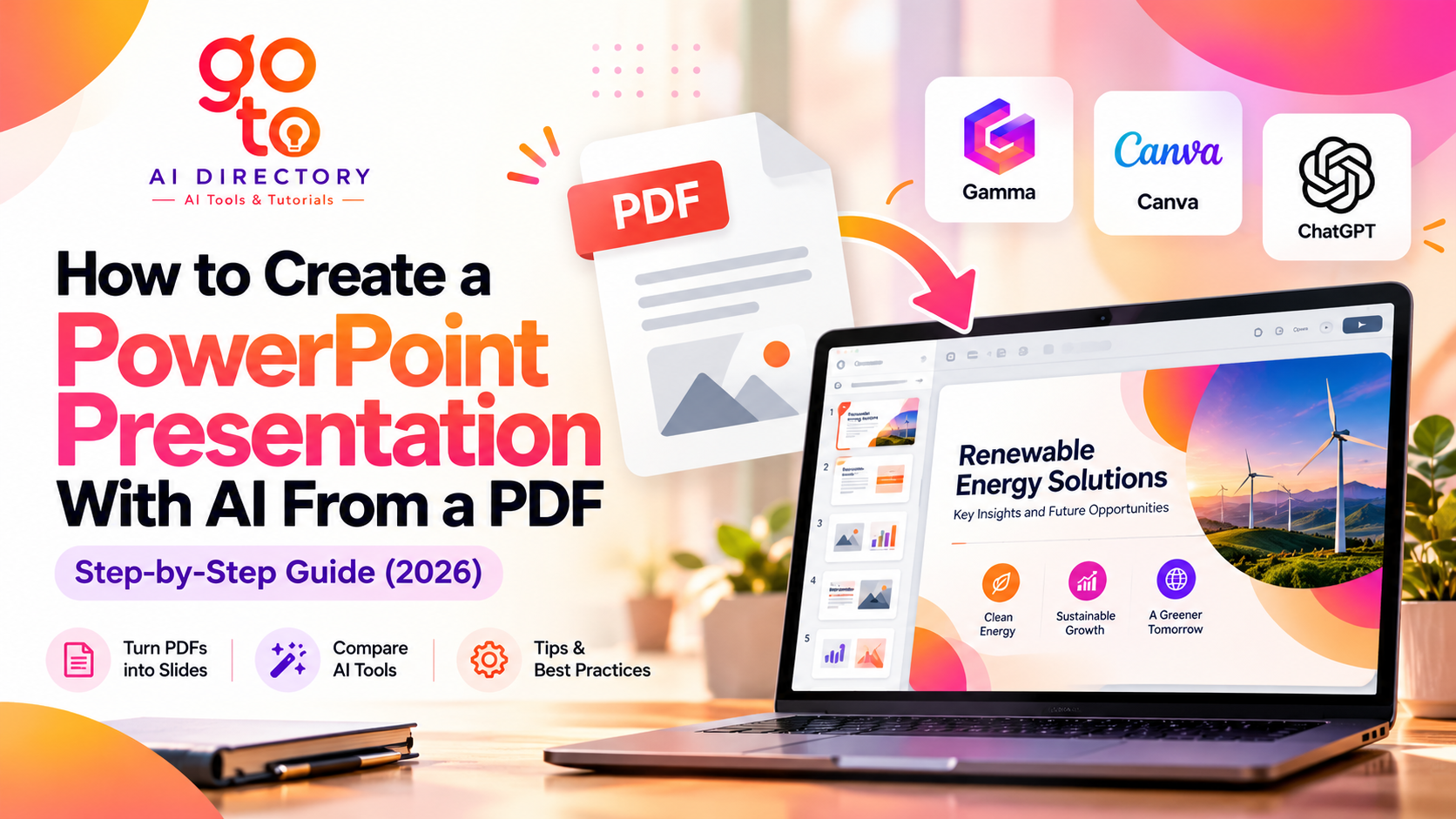
How to Create a PowerPoint Presentation With AI From a PDF
Turning a lengthy PDF into a PowerPoint presentation can be time-consuming. You need to identify important information, organize it into a logical structure, shorten lengthy paragraphs, and design slides that communicate the main ideas clearly.
AI can simplify much of this process. Instead of manually copying information from a report, research paper, or lecture notes, you can use AI to summarize the document, generate a presentation outline, and help create slides.
PDF to PowerPoint AI tools can be particularly useful when you need to transform a document into a presentation rather than simply reproduce its original pages.
However, not all tools work in the same way. Some generate new presentations from uploaded documents, others provide AI-assisted design tools, and traditional PDF converters focus on preserving existing layouts.
In this guide, you’ll learn how to create PowerPoint from PDF with AI using Gamma, Canva, and AI assistants, along with an alternative for converting existing PDF layouts. We’ll also cover how to improve your slides, verify the information, and avoid common mistakes.
Can AI Turn a PDF Into a PowerPoint Presentation?
Yes. AI can help turn PDF content into a structured presentation by extracting text, identifying key ideas, summarizing information, and suggesting slide layouts.
For example, imagine you have a 30-page research report about renewable energy and need to create a 10-slide presentation for university students. Instead of transferring the entire document into PowerPoint, you could ask an AI tool to identify the main findings and organize them into an introduction, methodology, results, discussion, and conclusion.
The resulting presentation might follow this structure:
| Slide | Suggested content |
|---|---|
| 1 | Title and report details |
| 2 | Background and objectives |
| 3 | Research questions |
| 4 | Methodology |
| 5 | Main findings |
| 6 | Important statistics |
| 7 | Trends and comparisons |
| 8 | Challenges and limitations |
| 9 | Recommendations |
| 10 | Conclusion and references |
This is an illustrative outline. The actual structure should depend on the source PDF and the intended audience.
AI can help organize information, but it may also omit important details, misinterpret tables, or introduce unsupported claims. Reviewing the presentation against the original PDF remains essential.
PDF to PowerPoint Conversion vs AI Presentation Generation
Before choosing a tool, determine whether you want to preserve the original PDF or create a new presentation based on its content.
| Feature | Traditional PDF converter | AI presentation generator |
|---|---|---|
| Main purpose | Convert existing PDF pages into PowerPoint | Create a presentation using PDF information |
| Content summarization | Generally not included | Often available |
| Slide structure | Usually follows the PDF | Can reorganize information |
| Visual design | Attempts to preserve original formatting | May generate new slide layouts |
| Best for | Existing presentations saved as PDFs | Reports, articles, research papers, and notes |
| Main limitation | Formatting and editability problems | Potential factual inaccuracies or omissions |
For example, if you have a PDF containing an existing slide deck, conventional conversion may be sufficient. If you have a lengthy report that needs to become a short presentation, an AI-assisted workflow is generally more suitable.
Step 1: Prepare Your PDF for AI Conversion
Before uploading a PDF to an AI tool, check whether the document contains selectable text. If you can highlight and copy the text, the file likely has a usable text layer. Scanned PDFs may require optical character recognition (OCR), which converts images of text into machine-readable content.
OCR is useful, but it can introduce errors in numbers, formulas, symbols, and tables. If your document contains technical information, verify the extracted content before using it in a presentation.
Next, identify the sections that matter most. A research paper might require its methodology, findings, and limitations, while a business report might need performance indicators, comparisons, and recommendations.
You should also check the document’s confidentiality. Before uploading financial reports, client documents, unpublished research, or personal information, confirm that the tool’s data-handling policies meet your requirements.
Step 2: Define Your Presentation Requirements
One of the most important steps when learning how to create PowerPoint from PDF with AI is deciding what the finished presentation should accomplish.
For our example, we’ll use these requirements:
| Element | Requirement |
|---|---|
| Source | 30-page renewable energy report |
| Audience | University students |
| Presentation length | 10 slides |
| Objective | Explain the report’s main findings |
| Writing style | Clear, educational, and concise |
| Design | Minimalist with readable charts |
| Accuracy | Preserve statistics and source references |
These details help guide the AI toward a useful presentation rather than a generic summary.
You should also consider how the presentation will be used. A deck for a live lecture usually needs less text on each slide than one intended for independent reading.
Step 3: Create a PowerPoint From a PDF Using Gamma
Gamma supports importing documents, including PDFs, and creating presentations from source content.
Its import workflow can be used to preserve existing material or generate a redesigned presentation. This makes it relevant when you want to turn a document into a new slide deck rather than simply convert its pages.
How to use Gamma
- Open Gamma and create a new project.
- Choose the file import or upload option.
- Upload your PDF.
- Select the appropriate option for generating a presentation from the imported content.
- Specify your preferred slide structure and presentation style.
- Review the generated slides.
- Edit the content, layouts, and visuals.
- Export the presentation in PowerPoint format.
For our renewable energy example, you could use the following prompt:
Create a 10-slide educational presentation using the uploaded renewable energy report as the only factual source. Include the background, objectives, methodology, key findings, statistics, limitations, and conclusions. Use concise language suitable for university students. Preserve numerical data exactly and identify the relevant PDF page for important claims. Do not invent information or references.
After generation, compare the slides with the PDF to ensure that important findings have not been omitted.
Gamma supports PowerPoint export, but exported formatting may differ from the original design. Open the PPTX file in Microsoft PowerPoint and check the layout before sharing it.
Step 4: Create a PowerPoint From a PDF Using Canva
Canva provides PDF importing, presentation templates, visual editing, and AI-assisted design features.
Canva’s workflow is different from a dedicated document-to-presentation generator. It is particularly useful when you want to control the visual appearance of your slides, edit imported content, or create a new presentation using information extracted from a PDF.
Canva’s Magic Design features can generate presentation designs from prompts. However, uploading a PDF does not necessarily mean Canva will automatically summarize the entire document and produce a concise presentation from its contents.
Method 1: Import and edit an existing PDF
If your PDF already contains slide-like content, you can import it into Canva and adjust the design.
- Open Canva and upload the PDF from your device.
- Open the imported document in the Canva editor.
- Review the imported pages and identify which elements are editable.
- Remove unnecessary content and adjust text, images, and layouts.
- Reorganize the material into a presentation-sized design if needed.
- Export the finished presentation as a PowerPoint file, where that export option is supported.
Canva attempts to preserve supported elements when importing PDFs, but some content may be flattened or imported as images. Scanned documents are particularly likely to require manual reconstruction.
If you need a PPTX file, make sure the finished design is a Canva presentation, since Canva’s PowerPoint export is intended for presentation designs.
Method 2: Use AI to summarize the PDF, then design slides in Canva
For a lengthy report, a more controlled approach is to extract and summarize the content first, then use Canva to create the presentation.
Start by uploading your PDF to an AI assistant that supports document analysis. Ask it to create a structured slide outline based only on the source.
For example:
Summarize this renewable energy report into 10 presentation slides. For each slide, provide a heading, three to five concise points, and the supporting PDF page numbers. Preserve all numerical information and do not introduce unsupported claims.
Once the outline is ready, review it for accuracy.
Next, open Canva and create a presentation. You can choose a template, use its visual editor, or explore available AI-assisted presentation design features to establish a layout.
Transfer the verified slide content into the presentation and adjust the typography, images, charts, and spacing.
Finally, select the PowerPoint export option to download the completed presentation as a PPTX file.
This method involves more manual work than a direct AI document-to-slides workflow, but it allows you to verify the information before finalizing the visual design.
When is Canva useful for this task?
Canva is a reasonable option when visual customization is important, especially if you want to use presentation templates, maintain consistent branding, or manually refine the structure of the slides.
It is less direct when your main requirement is automatically extracting and summarizing a lengthy PDF into a complete presentation.
Step 5: Use an AI Assistant to Create Slide Content From a PDF
You can also use a general-purpose AI assistant to prepare presentation content without relying on a dedicated slide generator.
This approach is useful when you want more control over the information that appears on each slide.
Start by uploading the PDF to an AI assistant that supports document analysis. Ask it to identify the main topics, key findings, and relevant statistics.
Next, request a slide-by-slide outline.
For example:
Read the uploaded PDF and create an outline for a 10-slide presentation. Use only information supported by the document. For each slide, include a title, three to five concise points, and the page numbers supporting those points. Flag any unclear or missing information instead of guessing.
Review the outline before requesting full slide content.
Once the content is accurate, transfer it into PowerPoint, Canva, or another presentation editor. You can then add diagrams, charts, images, and speaker notes as needed.
Some AI environments may also support generating downloadable presentation files, but that capability depends on the features available.
Step 6: Convert an Existing PDF Into PowerPoint With Adobe Acrobat
Not every PDF requires AI.
If your document already contains slides and you want to preserve the existing design, a conventional PDF converter may be more appropriate.
Adobe Acrobat provides a PDF-to-PowerPoint conversion feature.
The basic process involves opening the PDF, selecting the conversion option, choosing Microsoft PowerPoint PPTX, and saving the converted file.
This method focuses on reproducing the original document rather than summarizing or reorganizing its information.
After conversion, review the fonts, text boxes, images, charts, and spacing. Some elements may not transfer perfectly and may require manual editing.
Which PDF to PowerPoint AI Method Should You Choose?
The best method depends on whether you want AI-generated slides, visual customization, or a straightforward conversion.
| Method | Best suited for | Main limitation |
|---|---|---|
| Gamma | Generating a new presentation from PDF content | Requires checking AI summaries and exported formatting |
| Canva | Designing and customizing presentations using PDF material | PDF summarization may require a separate AI step |
| AI assistant + PowerPoint | Controlling and verifying slide content before design | More manual assembly |
| Adobe Acrobat | Converting existing PDF layouts to PowerPoint | Does not automatically summarize documents |
For a long research report, a workflow that supports summarization and restructuring may be more useful. For an existing slide deck saved as a PDF, conventional conversion may be faster.
If you want to customize the design extensively, Canva provides another approach, particularly when the content has already been organized.
How to Write Better AI Prompts for PDF Presentations
A useful prompt should explain the audience, slide count, presentation objective, and factual requirements.
Simply asking an AI tool to “turn this PDF into PowerPoint” may result in slides that are too long, poorly organized, or missing important information.
Here are some examples.
Prompt for a business report
Create an eight-slide presentation from this PDF for a management meeting. Focus on key performance indicators, changes over time, risks, and recommendations. Preserve all financial figures exactly as stated. Include source page references and do not invent missing information.
Prompt for a research paper
Turn this research paper into a 12-slide academic presentation. Include the research question, methodology, results, discussion, limitations, and conclusion. Explain technical terms briefly and preserve the distinction between findings and interpretations.
Prompt for lecture notes
Create a 10-slide educational presentation from these lecture notes. Organize the concepts logically, use concise bullet points, and suggest diagrams where helpful. Do not introduce unsupported factual information.
Prompt for checking accuracy
Compare this presentation with the original PDF. Identify unsupported claims, missing qualifications, incorrect statistics, and misleading summaries. Suggest corrections based only on the source document.
Clear instructions help reduce unnecessary editing, although they cannot guarantee accuracy.
How to Make AI-Generated PowerPoint Slides Look Professional
AI can help organize content, but the quality of a presentation also depends on how the information is displayed.
Start by limiting the amount of text on each slide. A presentation filled with paragraphs is difficult to follow, especially when someone is speaking alongside it.
Use clear headings that communicate the main point. Instead of a generic title such as “Results,” a more informative heading could explain the central finding, provided it is supported by the source.
Charts should be selected according to the data. Bar charts can help compare categories, while line graphs can illustrate changes over time. Avoid decorative visualizations that do not add useful information.
When recreating charts from PDFs, verify the numerical values, axis labels, units, and legends. AI can misinterpret these elements, particularly when working with scanned documents.
Maintain consistent fonts, colors, spacing, and image styles throughout the presentation. Simple layouts with adequate contrast and readable text generally work better than overcrowded slides.
Common Problems When Converting PDFs Into AI Presentations
1. Important information is missing
AI summarization may overlook information in footnotes, appendices, or complex tables.
Solution: Compare the generated presentation with the source PDF and check whether all essential findings are represented.
2. Statistics are incorrect
Numbers may be rounded incorrectly, separated from their units, or presented without context.
Solution: Verify every important numerical claim manually.
3. Slides contain too much text
Some tools transfer long paragraphs directly into the presentation.
Solution: Ask for concise points and move supporting explanations into speaker notes.
4. The AI adds unsupported claims
AI-generated content may contain examples or conclusions that are not present in the source.
Solution: Require source references and remove information that cannot be verified.
5. The PowerPoint export changes the layout
Fonts, spacing, images, and other elements may shift during conversion.
Solution: Open the exported PPTX file in PowerPoint and inspect every slide.
6. Scanned PDFs are difficult to edit
Scanned pages may be imported as images rather than editable text.
Solution: Use OCR where appropriate and recreate content manually when necessary.
Can You Convert PDF to PowerPoint With AI for Free?
Some presentation platforms offer free plans, trials, or limited AI generation. However, PDF uploads, advanced editing features, and PowerPoint exports may be restricted by the selected plan.
Canva offers PDF editing and presentation creation features, but some AI capabilities and design assets may require a paid subscription.
Other tools may limit the number of presentations, AI generations, or exports available without payment.
Before choosing a tool, check whether it supports the file size, slide count, export format, and editing features you need.
Also remember that a free PDF-to-PowerPoint converter is not necessarily an AI presentation generator. Conventional conversion preserves document content, while AI generation may summarize and restructure it.
How to Verify the Accuracy of an AI-Generated Presentation
An AI-generated presentation can look polished while containing factual mistakes.
Before presenting or sharing your slides, verify the following:
- Numerical values match the source PDF, including units and time periods.
- Charts accurately represent the original data.
- Important limitations and qualifications have been preserved.
- Quotations and references are attributed correctly.
- No unsupported claims or conclusions have been introduced.
- Slides remain readable and properly formatted after export.
For scientific, financial, medical, or other high-stakes presentations, this review is particularly important.
You can use AI to help identify discrepancies, but the final verification should be performed against the original source.
Frequently Asked Questions
Can AI convert a PDF into an editable PowerPoint?
Yes. Some AI tools and conventional converters can generate PPTX files from PDFs. However, the editability of individual elements depends on how the document is processed and exported.
Can Canva convert a PDF into PowerPoint?
Canva supports importing and editing PDFs, as well as exporting presentation designs to PowerPoint format. However, importing a PDF does not guarantee that every element will remain editable or that the content will be automatically summarized into new slides.
Is Gamma or Canva better for creating presentations from PDFs?
They support different workflows. Gamma provides document-based AI presentation generation, while Canva offers PDF importing, AI-assisted design, and extensive visual editing. The appropriate choice depends on whether you prioritize automatic content restructuring or hands-on design customization.
Can ChatGPT create PowerPoint slides from a PDF?
ChatGPT can help analyze supported uploaded PDFs, summarize their contents, and draft slide-by-slide presentation content. Generating a downloadable PowerPoint file depends on the tools available in your environment.
How do I turn a long PDF into a short presentation?
Upload the PDF to a compatible AI tool, specify the number of slides and intended audience, and ask it to prioritize the most important findings. Review the outline and verify the content before generating the final presentation.
Can I convert a PDF to PowerPoint with AI for free?
Some tools offer free access with limitations. Check whether PDF importing, AI generation, and PPTX exporting are included in the plan you intend to use.
Will AI preserve charts and images from my PDF?
Not necessarily. Depending on the tool, charts and images may be imported, recreated, simplified, or omitted. Always compare the results with the original document.
Is it safe to upload confidential PDFs to AI tools?
That depends on the service’s data-handling policies and your organization’s requirements. Avoid uploading confidential documents without confirming that the intended use is permitted.
Final Thoughts
Learning how to create PowerPoint from PDF with AI can make it easier to turn lengthy documents into clear, structured presentations without manually building every slide.
Gamma provides an approach centered on generating presentations from source material, while Canva offers a flexible environment for importing, designing, and editing slides. General-purpose AI assistants can help prepare accurate slide content before you move into a presentation editor, and conventional PDF converters remain useful when preserving the original layout is the priority.
The most important step is reviewing the finished presentation. AI can help summarize information and suggest layouts, but factual accuracy, clarity, and suitability for the audience still require human judgment.
If you’re exploring other ways to create presentations, you can browse the AI presentation tools available through GoTo AI Directory to discover different options and compare their capabilities.