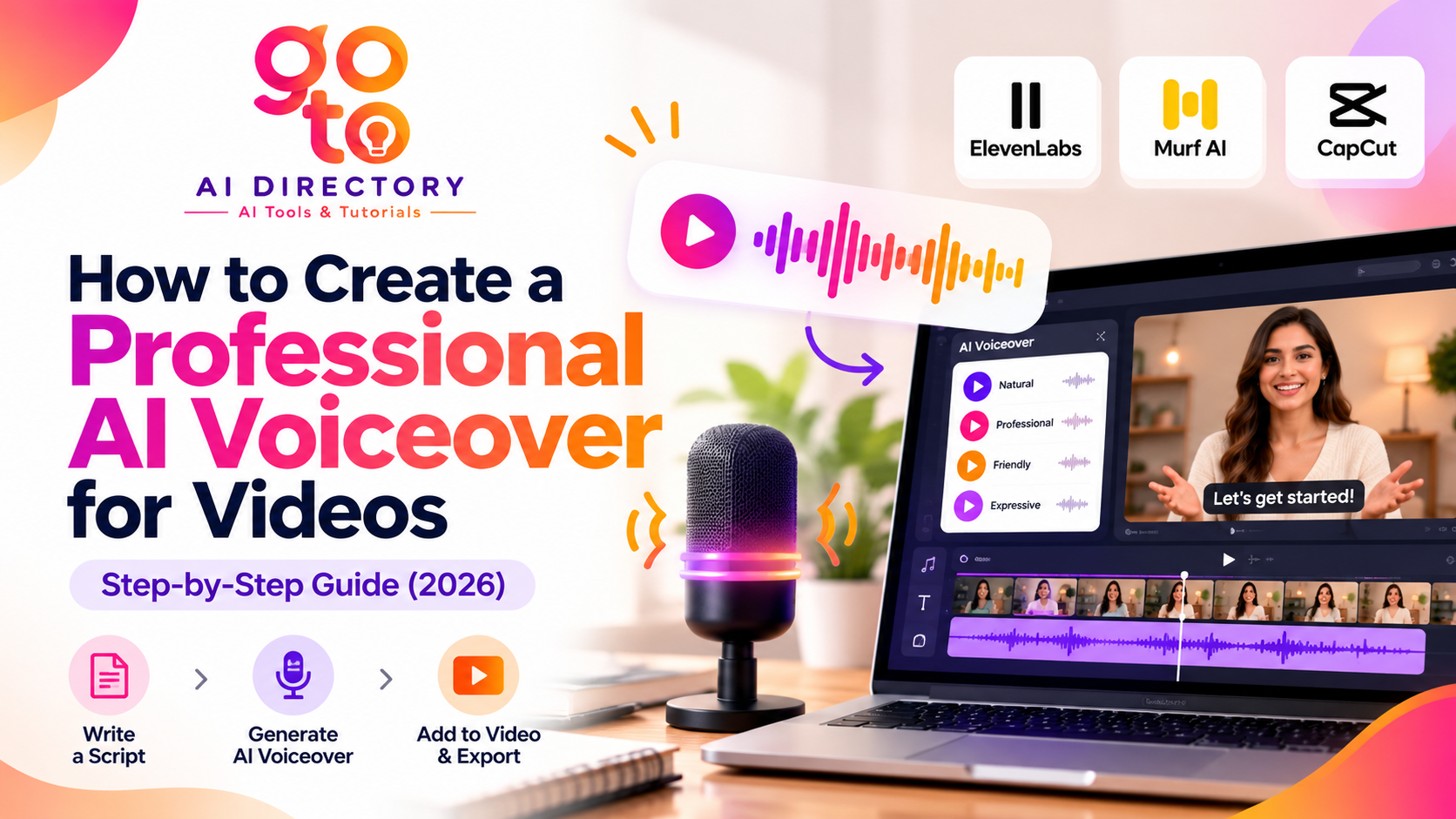
How to Create a Professional AI Voiceover for Videos: Step-by-Step Guide
Creating a voiceover for a video traditionally meant recording your narration, finding a quiet room, editing background noise, and repeating sentences whenever something sounded wrong. Today, AI text-to-speech tools offer another way to produce spoken narration without recording every line yourself.
An AI voiceover for videos converts written text into synthetic speech that can be added to YouTube tutorials, educational videos, product demonstrations, social media clips, and presentations.
However, generating speech is only the beginning. A professional-sounding voiceover also needs clear pronunciation, appropriate pacing, natural pauses, and synchronization with the visuals.
This guide explains how to make AI voiceover for videos using practical examples and tools such as ElevenLabs, Murf AI, and CapCut. You’ll also learn how to make AI narration sound less robotic and avoid common editing mistakes.
What Is an AI Voiceover?
An AI voiceover is spoken narration generated using text-to-speech (TTS) technology. You enter a script, select a synthetic voice, and the software produces audio based on your text.
Modern AI voice generators can offer different languages, accents, speaking styles, and pronunciation controls. Some also allow you to adjust the narration alongside video footage.
For example, imagine you’re creating a 60-second tutorial explaining how to remove the background from a product photograph. You could write the script, generate the narration using AI, and synchronize the audio with your screen recording.
The result can be useful without a microphone or recording setup, but it still requires editing to sound natural.
Step 1: Write a Script That Sounds Natural When Spoken
The script is the most important part of an effective AI voiceover for videos. Text written for reading does not always sound natural when spoken aloud.
Avoid long sentences, complicated phrases, and paragraphs containing too many ideas. Instead, write conversationally and divide your narration into manageable sections.
Consider this example:
Before:
This tutorial will demonstrate the utilization of artificial intelligence-based background removal functionality to facilitate the efficient modification of digital product imagery.
After:
Want to remove the background from a product photo? In this tutorial, I’ll show you how to do it using AI.
The second version is shorter, easier to understand, and more suitable for video narration.
Practical example: A 30-second video script
For a short tutorial about AI background removal, you could use:
Need a clean background for your product photos? Start by uploading your image to an AI background remover. Let the tool identify the subject and remove the background. Check the edges carefully, especially around hair or transparent objects. Once you’re happy with the result, download the image in your preferred format.
This script is approximately 55 words. At a moderate speaking pace, it leaves some room for visual transitions in a 30-second video.
As a general starting point, conversational narration often falls around 130 to 160 words per minute. The ideal speed depends on the subject, audience, and complexity of the information.
Step 2: Choose an AI Voice That Matches Your Video
Different videos need different narration styles. A calm, measured voice may suit an educational tutorial, while a more energetic delivery may work for a short promotional clip.
When selecting an AI voice, listen for clarity, natural rhythm, and pronunciation rather than choosing the most expressive option automatically.
| Video type | Voice characteristics to consider |
|---|---|
| Educational tutorial | Clear, steady, easy to follow |
| YouTube explainer | Conversational and engaging |
| Product demonstration | Confident and informative |
| Meditation video | Calm, slow, gentle |
| Social media tutorial | Concise, lively, and clear |
| Corporate training | Consistent, neutral, professional |
Preview several voices using the same paragraph. This makes it easier to compare their delivery without changing the script.
Also check the available language and accent options if your audience is international.
Step 3: Generate an AI Voiceover Using Different Tools
Several AI tools support text-to-speech generation, but their workflows and editing capabilities differ.
Method 1: Create a Voiceover With ElevenLabs
ElevenLabs provides AI speech generation and a Studio environment for creating audio and video projects.
To generate narration:
- Open ElevenLabs and access its text-to-speech or Studio interface.
- Create a new project or open the speech-generation tool.
- Paste your prepared script.
- Select a voice and supported speech model.
- Preview the generated narration.
- Adjust the script or pronunciation settings if necessary.
- Generate the final audio and export it in an available format.
ElevenLabs Studio also supports video projects in which speech and visual clips can be arranged on a timeline. Its current Studio documentation describes tools for editing narration, correcting pronunciation, adding captions, and exporting the completed project.
This workflow is useful when you want to refine individual lines rather than regenerate the entire narration repeatedly.
Method 2: Create a Voiceover With Murf AI
Murf AI provides a voiceover editor with controls for speaking speed, pitch, pauses, and pronunciation.
To create narration:
- Start a new project in Murf Studio.
- Paste or import your script.
- Choose a voice from the available library.
- Generate a preview of the narration.
- Adjust the speaking rate, pronunciation, and pauses.
- Review the complete audio.
- Export the voiceover using an available export option.
One useful feature is the ability to insert pauses into specific sections of the script.
For example, Murf supports pause instructions such as:
Welcome to the tutorial. [pause 1s] Let's get started.
This inserts a one-second pause, which may help synchronize narration with a transition or on-screen action.
The available voice controls and export options depend on the model and plan.
Method 3: Create an AI Voiceover Directly in CapCut
CapCut provides text-to-speech functionality within its video editing workflow.
If you’re already editing a video, this can reduce the need to generate narration separately and import it afterward.
The basic desktop workflow is:
- Open CapCut and create a new video project.
- Import your video clips.
- Add a text element containing your narration.
- Open the text-to-speech controls.
- Select a supported AI voice.
- Generate the speech.
- Position the audio alongside the relevant video clips.
- Preview and export the finished video.
CapCut’s available voices and AI features can vary by platform and region.
Step 4: Make Your AI Voiceover for Videos Sound More Natural
Even a realistic synthetic voice can sound unnatural if the script is poorly structured or the pacing is inconsistent.
Start by listening to the narration without watching the video. Pay attention to sentences that sound rushed, awkward pauses, and words pronounced incorrectly.
Adjust the speaking speed
If the narration is difficult to follow, reduce the speaking rate slightly. Technical explanations often benefit from slower delivery, especially when viewers need time to read on-screen information.
Avoid slowing the voice so much that it sounds stretched or unnatural.
Add pauses where they help comprehension
Pauses are useful after important statements, before introducing a new step, and during visual transitions.
For example:
First, upload your image.
Next, select the background removal option.
Finally, review the result before downloading.
These short sections give the narration a clearer rhythm.
Correct pronunciation
AI voices may mispronounce brand names, abbreviations, technical terms, and unfamiliar names.
Test these words separately before generating the full script. Where supported, use pronunciation dictionaries, phonetic spellings, or pronunciation rules.
Avoid excessive emotion
Not every sentence needs dramatic emphasis. For tutorials and informational videos, consistent and clear delivery is usually more useful than exaggerated enthusiasm.
Step 5: Add the AI Voiceover to Your Video
Once the narration is ready, import the audio into your video editor if it isn’t already part of the project.
Place the voiceover on the audio timeline and align each section with the corresponding visuals.
For example, when the narration says, “Click the background removal button,” viewers should see that action at approximately the same time.
If the narration finishes before the relevant action is visible, add a short pause or adjust the clip timing. If the narration continues after the visuals have changed, shorten the script or extend the appropriate footage.
Keep background music quieter than the narration so viewers can understand the spoken instructions. Also check the beginning and end of each audio clip to avoid abrupt cuts.
Finally, add captions where appropriate. Captions improve accessibility and help viewers follow videos in situations where audio is unavailable.
Step 6: Review the Final Video Before Publishing
A professional AI voiceover for videos should be evaluated as part of the complete video, not just as a separate audio file.
Watch the finished video from beginning to end and check whether the narration matches the visuals, important words are pronounced correctly, and transitions feel natural.
Listen using both headphones and ordinary speakers if possible. Music that sounds quiet through headphones may interfere with speech on another device.
Check that the voiceover is consistently audible and that no sections are clipped, distorted, or unexpectedly loud.
If you’re publishing on YouTube or social media, also verify that the voice, music, and other audio assets are permitted for your intended use. Commercial-use rights may differ between tools and subscription plans.
AI Voiceover For Videos Tools Compared
| Tool | Main workflow | Useful features | Considerations |
|---|---|---|---|
| ElevenLabs | Text-to-speech and audio/video Studio | Voice selection, pronunciation controls, timeline editing | Features vary by model and plan |
| Murf AI | Script-based voiceover production | Speed, pitch, pauses, pronunciation editing | Export and customization options vary |
| CapCut | Video editing with integrated TTS | Narration generation alongside video editing | Availability varies by platform and region |
There is no single best AI voiceover for Video tool for every project. The appropriate choice depends on whether you need a standalone narration file, detailed speech controls, or an integrated video editing workflow.
Common AI Voiceover Mistakes to Avoid
Using a script that is too long: Long paragraphs can make narration difficult to follow. Divide the script into short sections and remove unnecessary wording.
Choosing a voice based only on its preview: Test the voice with your actual script, including technical terms and longer sentences.
Ignoring pronunciation errors: Mispronounced names or technical terms can reduce the credibility of an educational video.
Using the same pace throughout: Important explanations may need slower delivery, while simple transitions can be shorter.
Making background music too loud: Narration should remain clearly understandable throughout the video.
Skipping the final review: Always watch the completed video rather than assuming that the generated audio will synchronize correctly.
Frequently Asked Questions
Can I create an AI voiceover for videos for free?
Some AI voice generators offer free plans or limited speech generation. However, download limits, available voices, audio quality options, and commercial-use rights may vary.
How do I make AI voiceovers sound less robotic?
Use conversational scripts, adjust the speaking speed, add natural pauses, and correct mispronunciations. Preview the narration and revise awkward sentences before exporting.
Can I use AI voiceovers for YouTube videos?
AI-generated narration can be used in YouTube videos, subject to the tool’s licensing terms and YouTube’s applicable policies. Make sure you have permission to use any cloned voice and disclose realistic synthetic content when platform rules require it.
Can AI voiceovers be used commercially?
Some tools allow commercial use under specified plans or licenses. Check the current terms before using generated audio in advertisements, client projects, or monetized videos.
Can I clone my own voice for videos?
Some AI platforms support voice cloning. Use only voices you own or have explicit permission to reproduce, and follow the service’s consent and verification requirements.
What is the difference between AI voiceover and AI dubbing?
AI voiceover generates narration for a video, while AI dubbing generally replaces or translates existing dialogue into another language, often with attention to timing and speaker delivery.
Final Thoughts
Learning how to make AI voiceover for videos is not simply about converting text into speech. The quality of the result depends on your script, voice selection, pacing, pronunciation, and how carefully the audio is synchronized with the visuals.
ElevenLabs, Murf AI, and CapCut offer different approaches to AI narration. Experimenting with a short script can help you understand which workflow suits your video before committing to a longer project.
For more options, you can explore the AI voiceover for videos and text-to-speech tools on GoTo AI Directory and compare the features relevant to your needs.